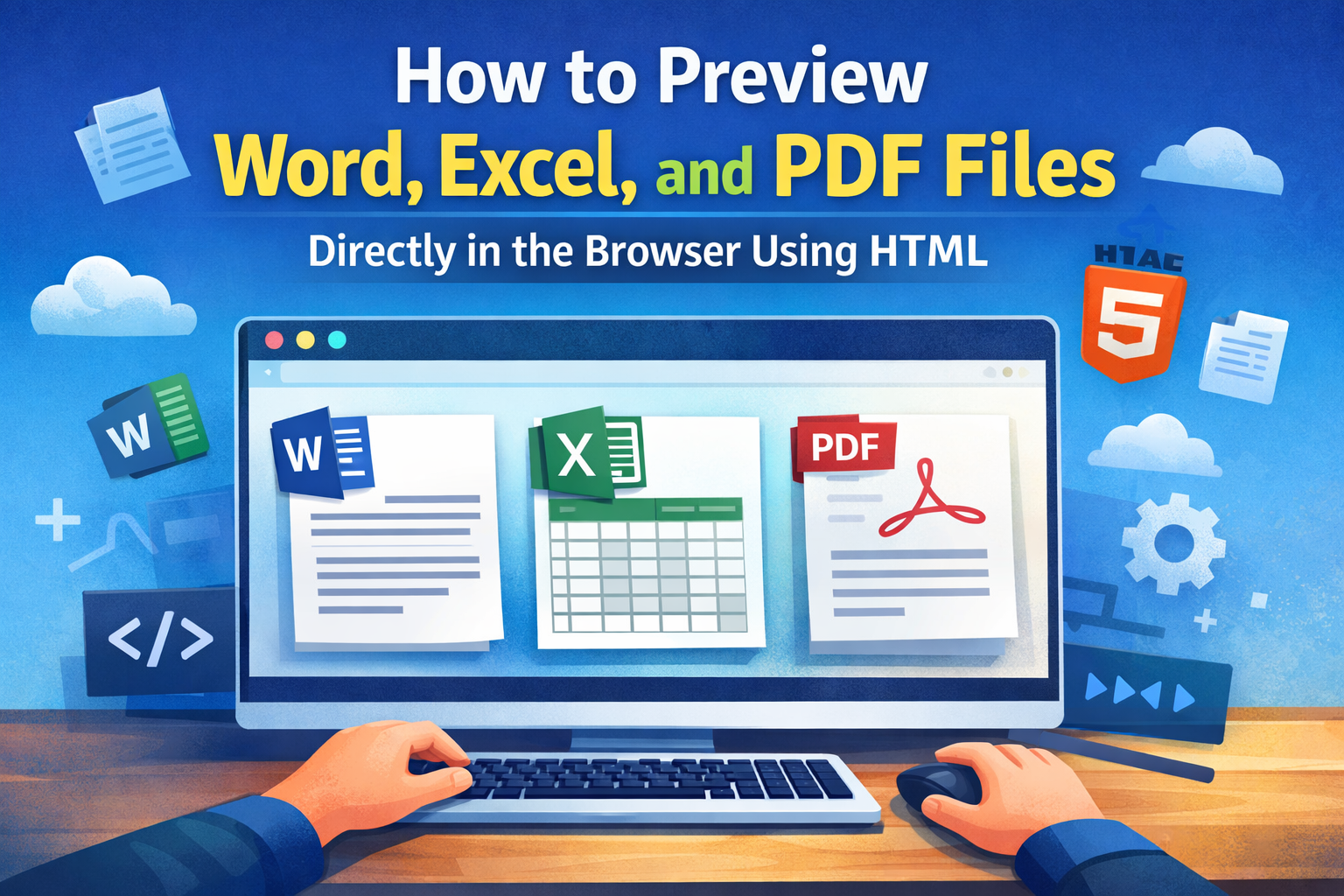
As a developer, you often need to display documents like Word, Excel, or PDF files directly in the browser without forcing users to download them. Fortunately, with a few simple HTML techniques and external services, you can provide a seamless preview experience. In this guide, we’ll cover the most common approaches.
1. Using <iframe> for PDFs
PDFs are the easiest to preview in the browser since most modern browsers support them natively. You can simply embed a PDF using an <iframe>:
<iframe src="path/to/your/document.pdf" width="100%" height="600px">
    This browser does not support PDFs. Please download the PDF to view it: <a href="path/to/your/document.pdf">Download PDF</a>.
</iframe>
This works well for PDFs and gives users a smooth preview experience.
2. Using Google Docs Viewer for Word & Excel
For Word (.doc/.docx) and Excel (.xls/.xlsx) files, browsers cannot render them natively. Google Docs provides a simple solution:
<iframe
    src="https://docs.google.com/gview?url=https://example.com/your-file.docx&embedded=true"
    width="100%"
    height="600px"
    style="border: none;">
</iframe>
Notes:
- Replace the URL with the public URL of your file.
- This approach works for Word, Excel, and even PowerPoint files.
- Make sure the file is accessible publicly, or else Google Docs won’t be able to fetch it.
3. Using Microsoft Office Online Viewer
Microsoft also offers an Office Viewer for embedding Word, Excel, and PowerPoint files:
<iframe
    src="https://view.officeapps.live.com/op/embed.aspx?src=https://example.com/your-file.xlsx"
    width="100%"
    height="600px"
    frameborder="0">
</iframe>
Advantages:
- Works for most Office formats.
- Provides a Microsoft-native interface.
- No third-party Google dependency.
4. Tips for a Smooth Preview Experience
- Responsive Width: Always set
width="100%"to make previews mobile-friendly. - Height Consideration: Adjust
heightaccording to your page layout. - Fallback Download: Always provide a download link in case the preview fails.
- File Hosting: Ensure your files are publicly accessible via HTTPS; otherwise, viewers may block them.
Conclusion
Previewing documents directly in the browser enhances user experience and reduces unnecessary downloads. By leveraging <iframe> along with Google Docs or Microsoft Office viewers, you can easily display Word, Excel, and PDF files without extra backend setup.






2 Likes 0 Comments 11 Views
Leave a comment
Leave a Reply