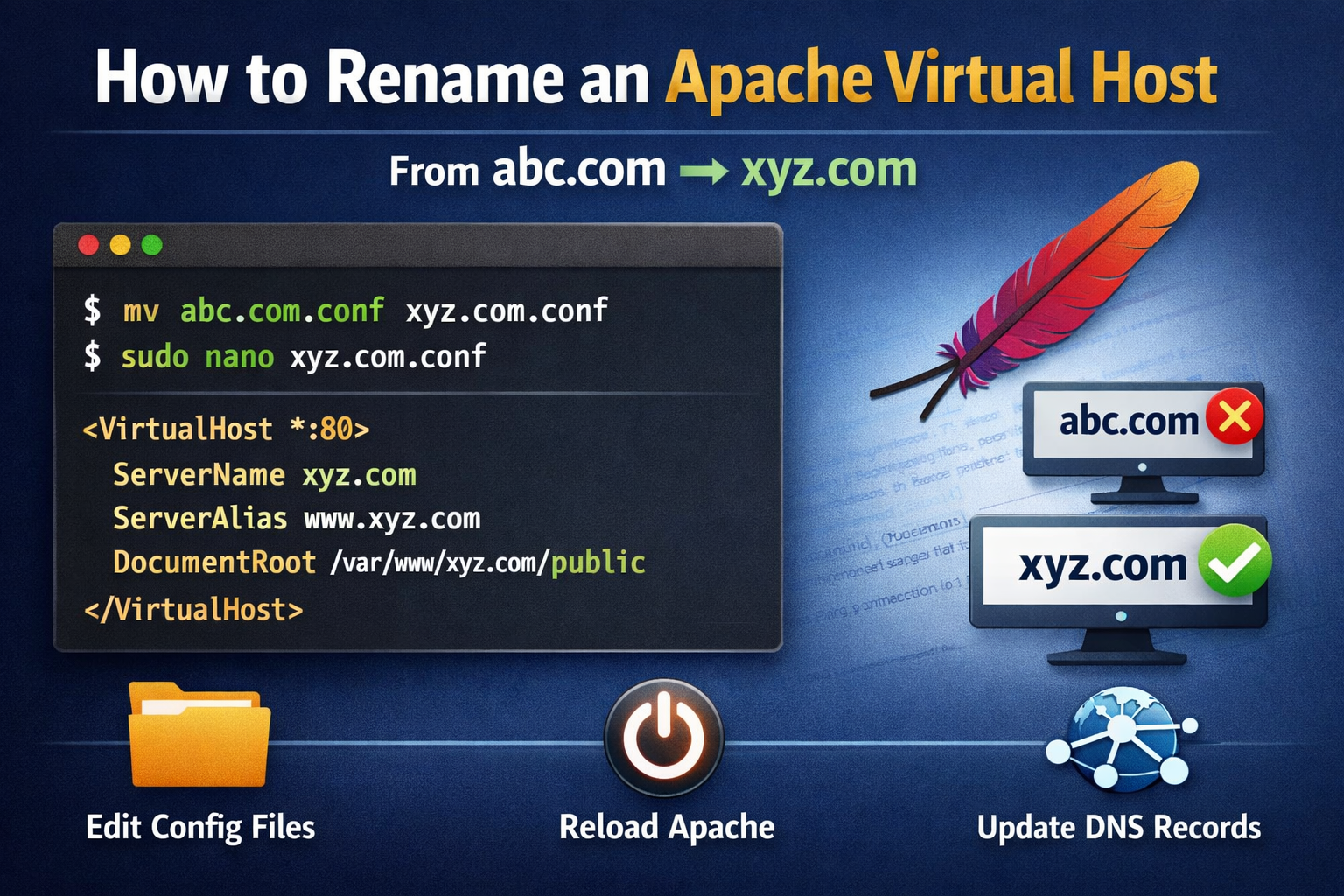
Renaming a Virtual Host in Apache usually means updating the domain name inside the Apache configuration and reloading the server. Let’s walk through the process step by step.
Step 1: Locate the Virtual Host File
Apache Virtual Hosts are usually stored here:
/etc/apache2/sites-available/
List all available sites:
ls /etc/apache2/sites-available/
You might see something like:
abc.com.conf
Step 2: Rename the Configuration File
Rename the file to match the new domain:
sudo mv abc.com.conf xyz.com.conf
Step 3: Update Virtual Host Configuration
Open the new file:
sudo nano /etc/apache2/sites-available/xyz.com.conf
Update the following directives:
<VirtualHost *:80>
    ServerName xyz.com
    ServerAlias www.xyz.com
    DocumentRoot /var/www/xyz.com/public
</VirtualHost>
Make sure the DocumentRoot path exists or update it accordingly.Step 4: Disable Old Site & Enable New Site
Disable the old virtual host:
sudo a2dissite abc.com.conf
Enable the new one:
sudo a2ensite xyz.com.conf
Step 5: Reload Apache
Test configuration first:
sudo apache2ctl configtest
If it says Syntax OK, reload Apache:
sudo systemctl reload apache2
Step 6: Update DNS (Important)
Ensure your new domain xyz.com points to the server IP via DNS A records. Apache won’t serve the site correctly without this.
Common Mistakes to Avoid
- Forgetting to update
ServerName - Missing DNS configuration
- Not reloading Apache
- Incorrect
DocumentRootpath
Conclusion
Renaming an Apache Virtual Host is simple once you know where to look. With the right configuration updates and a quick Apache reload, your new domain will be live and running smoothly.









1 Likes 0 Comments 8 Views
Leave a comment
Leave a Reply